CaptureCrew Guide
How to capture a story
Seven steps. Two minutes to learn. No training required.
Before you start
- You hold the phone. The questions are on the screen for you, not for them. They just talk.
- Don't take notes. That's the whole point. Be present in the conversation.
- Find a quieter corner if you can. It works in a loud room, but easier is better.
Open the link and enter your name
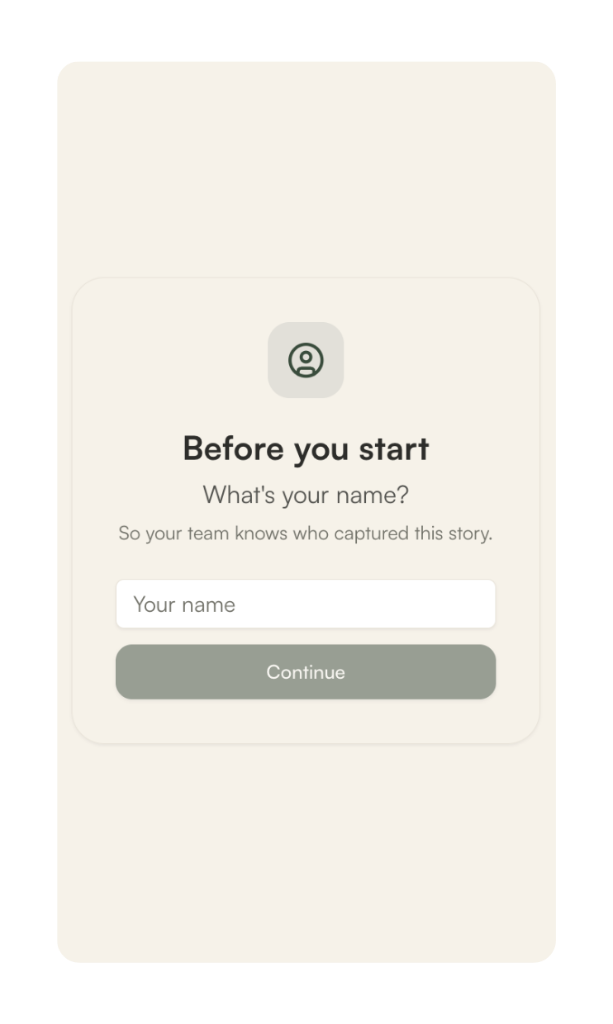
Open the app using the link your team sent you. The first time you use it on a device, it asks for your name.
Enter your name and tap Continue. This identifies you as the team member who captured the story, so your team knows who captured what.
It remembers your name on that device, so you only do this once.
Select your session
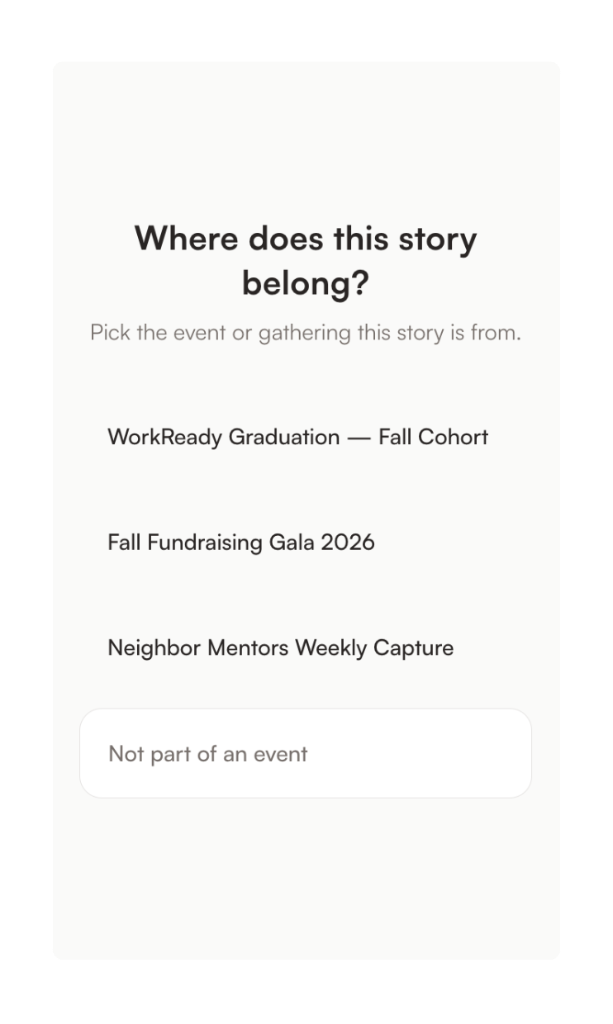
Select the session or event this story belongs to. If it's part of a specific event, tap it from the list.
If it's not part of a specific event, choose the "Not part of an event" option at the bottom.
Picking the right session attaches the date, location, and context to the story automatically, so you don't have to fill in anything else later.
Start capturing
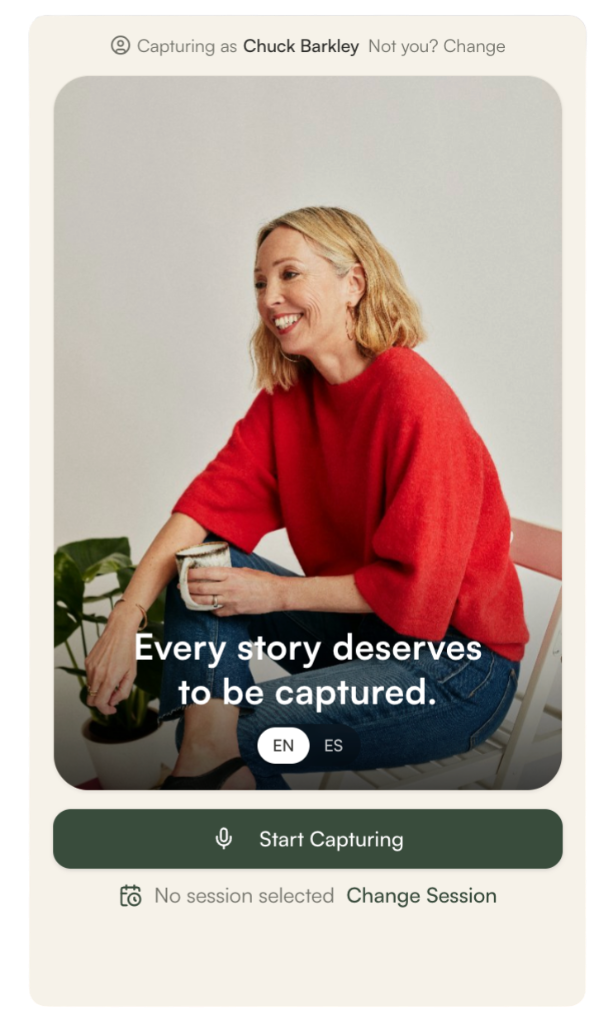
Press the "Start Capturing" button to begin. You'll see a preview of the recording interface once the microphone is active.
If the wrong name shows at the top, tap "Not you? Change" to switch it.
You can also toggle between English and Spanish using the EN / ES pills if you're capturing in a different language.
Ask for consent
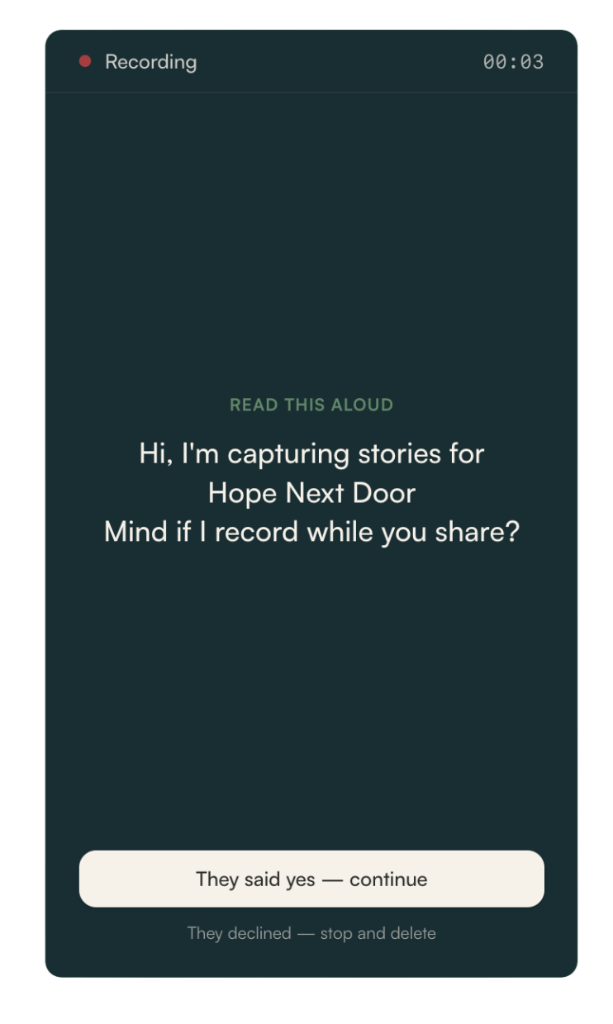
Use the recording screen to read the consent prompt aloud to the storyteller. The words appear on screen so you can read them naturally.
Wait for their answer. If they agree to be recorded, tap "They said yes — continue" to move on to the questions.
If they say no, tap "They declined — stop and delete" and the recording is removed. No pressure, no awkwardness. Just thank them and move on.
Ask the questions, following the prompts
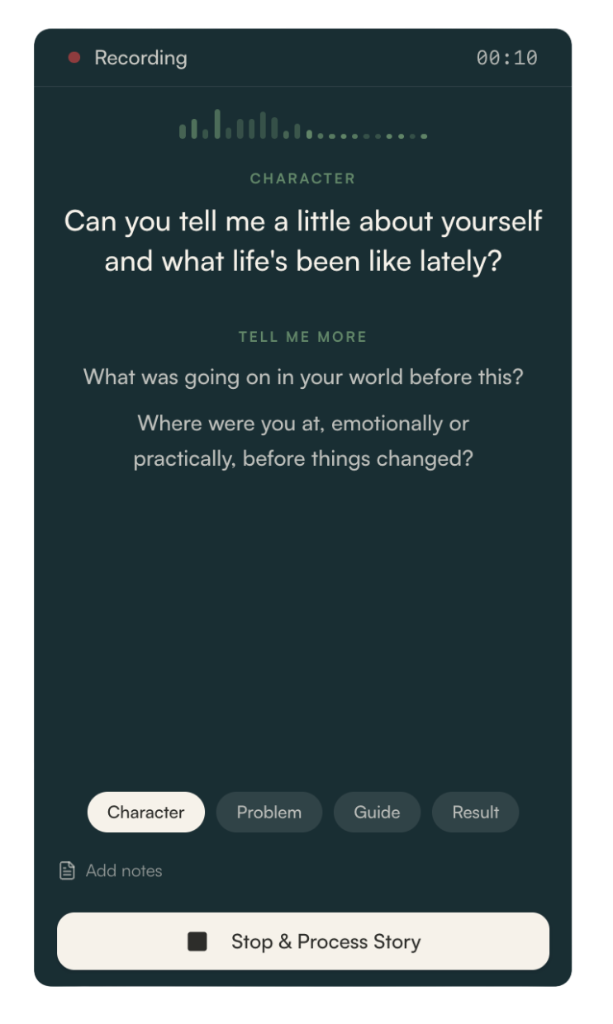
Engage the storyteller by asking the questions displayed on the screen. The four prompts — Character, Problem, Guide, and Result — appear one at a time to keep the narrative structured.
Ask the main question, then listen. Follow the answer wherever it goes. The smaller follow-up questions underneath are there if the conversation stalls.
Use the Character, Problem, Guide, and Result tabs at the bottom to move between sections when the conversation naturally shifts.
You're not conducting an interview. You're having a conversation with the questions nearby. When you're done, tap "Stop & Process Story."
Give the device to the storyteller
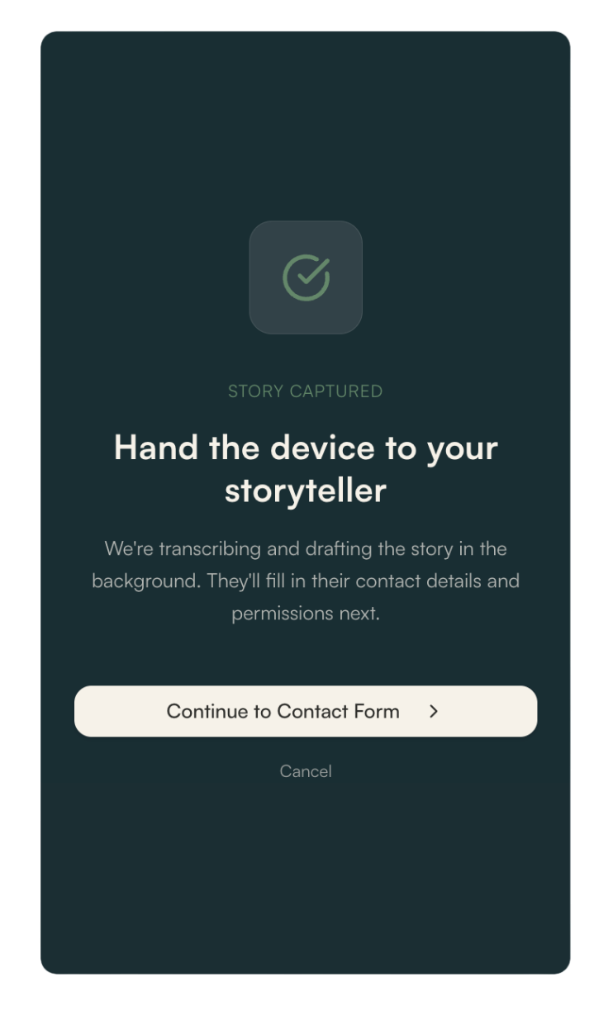
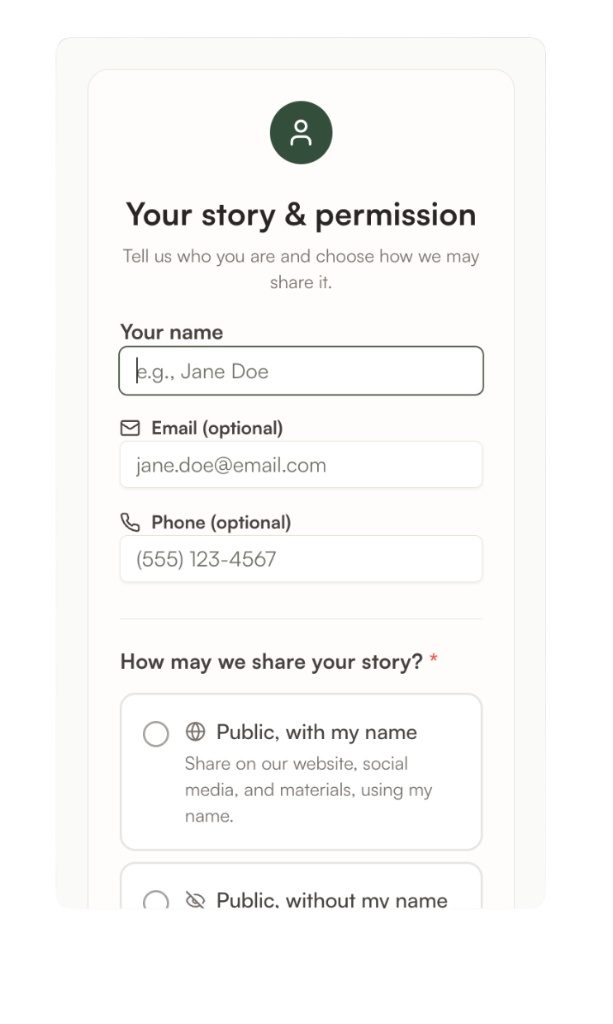
Once you stop the recording, you'll see a confirmation screen. Hand the device to the storyteller.
They'll be prompted to enter their name and contact info, and choose how their story may be shared — public with their name, public without it, internal only, or not right now.
That permission choice stays with the story, so your team always knows what they're allowed to do with it. You don't need to fill anything in for them.
Capture another story
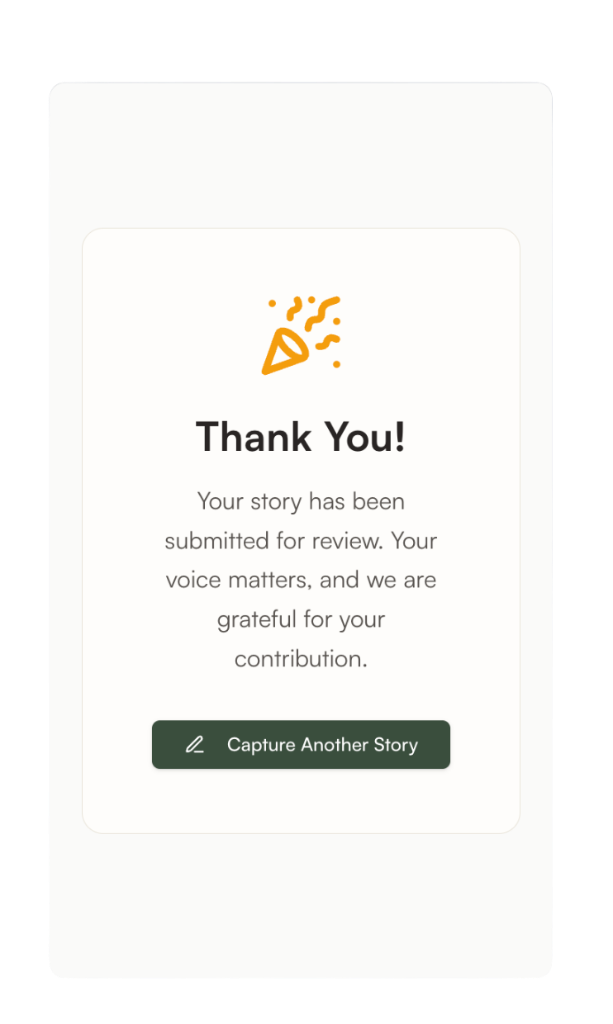
After the storyteller submits their details, you'll see a confirmation screen. The story is now in your team's library, ready for review.
From here, tap "Capture Another Story" to begin the process again for a new storyteller. That's the whole loop.
What happens next
Your team gets a written story, ready to use. Nobody had to write anything down.
Capturing in Spanish? Tap the language toggle at the top of the capture page. Questions, consent, and the finished story all switch to Spanish.
The audio isn't kept. CaptureCulture records the conversation to build the story, then the recording goes away. The written story is what stays.
Capturing on a video call
You don't have to be in the room. If you're on a call and someone starts telling you something worth keeping, you can capture it right there.
- Desktop only. This doesn't work from a phone.
- Log in to CaptureCulture on your computer and start a capture the same way you would in person.
- Use your speakers, not headphones, so your microphone picks up their voice as well as yours.
- Read the consent line out loud on the call, just like you would face to face. Wait for their answer.
- Ask the four questions on your screen and let the conversation go where it goes.
- When you're done, you fill in their details instead of handing over a device. Ask for their name, ask whether they want to leave an email or phone number (optional), and read them the sharing options so they can choose. Enter what they tell you.
Everything else works the same. The story lands in your library ready for review.
Put it on your home screen
Worth thirty seconds. Saving the capture link to your home screen means one tap and you're recording, instead of digging through texts to find the link.
iPhone
- Open the capture link in Safari
- Tap the Share button at the bottom
- Scroll down and tap Add to Home Screen
- Tap Add
Android
- Open the capture link in Chrome
- Tap the three dots in the top right
- Tap Add to Home screen (or Install app)
- Tap Add
Now it sits on your phone like any other app.